
Online Editing Tool: Mastering the Crop Tool

Here's an in-depth look at how to master the crop tool in the Corefact online editing tool.
Once you select an image, the crop tool will show up at the top toolbar as the leftmost option. There are thee different crop options available.
Stretch
Stretch will pull, or stretch, the image out to the edges of the image block. If the original image size is tall it can also pull up and down as well. If it is wide, the same can be applied left and right.
Contain Contain fits the entire image at its original proportions within the image block. The trade-off is that the image may not fill the image block completely on the sides, top, or bottom.
Cover
Cover will auto-zoom the image in until it completely fills the image block. The trade-off is that some parts of the image will get cut off. But overall, the image does not appear stretched and most of the image will appear in place.
Pan
Drag the cursor over the image and you’ll see the arrow change into a hand icon. Then you can click and drag your image around inside the image box, panning the image around inside the box.
Zoom
Lets you zoom out or zoom in to fully customize your view of image.
You can combine several of the options together to create the image you desire on your image block.
Want to see a tutorial on ways to apply these options? Check out our editing image tutorial.
Need help?
Our Customer service team is ready to come to the rescue:
Call us: +(866) 777-3986
Monday through Friday 8:00 AM - 5 PM PST
Email: CS@Corefact.com
Related topics

Online Editing Tool: Replacing Sample Images
Learn how to replace sample images with the Corefact online editing tool.
Read More
Online Editing Tool: Editing Image Tutorial
View this tutorial on image options available with the Corefact online editing tool.
Read More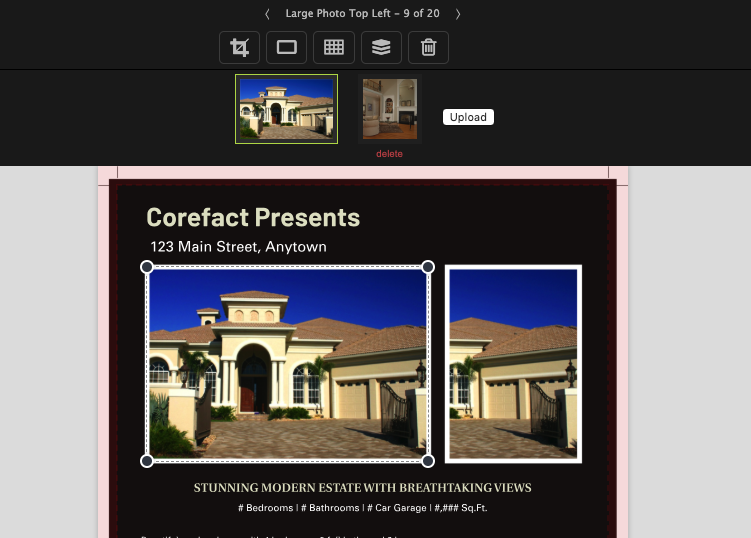
Online Editing Tool: Images 101
Learn all about editing and managing images using the Corefact online editing tool.
Read More