
Online Editing Tool: Editing Image Tutorial

Here is a handy tutorial on one of the many ways you can manually adjust or edit your images. Click here for an in-depth explanation of the image features.
For the image featured here:
- Click on the image.
- Select the "Crop" option in the top option bar.
- This gives you access to the "Zoom" option. Zoom out about 20% so you can see more of the interior.
- Hovering over the image, you will see the cursor switch to a hand icon. Click and hold on the image, and you can pan, or move, the image within the image box.
Click here for a round-up of all our image instructional videos and tutorials.
Need help?
Our Customer service team is ready to come to the rescue:
Call us: +(866) 777-3986
Monday through Friday 8:00 AM - 5 PM PST
Email: CS@Corefact.com
Was this helpful?
Related topics

4 min. read
Online Editing Tool: Copying Images
Learn how to copy and maneuver images using the Corefact online editing tool.
Read More
6 min. read
Online Editing Tool: Image Gallery
Learn all about the image gallery using the Corefact online editing tool.
Read More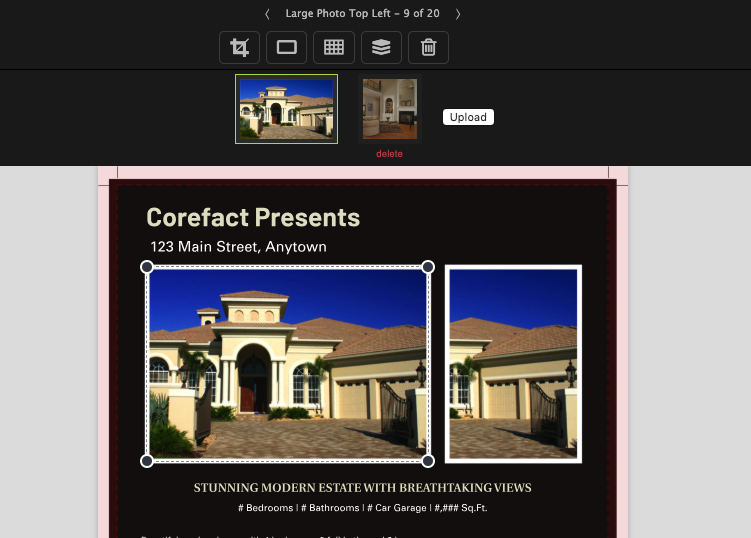
20 min. read
Online Editing Tool: Images 101
Learn all about editing and managing images using the Corefact online editing tool.
Read More