
Online Editing Tool: Changing Font Size

Here's how to change and update your font size.
- Click on the text block. A font options menu will show up in your toolbar.
- Click the font size arrow to open the font size options.
- Change font size by entering your desired number or using the slider to shrink or enlarge the text.
Quick Note:
The "shrink to fit" option caps the text size to fit within the dimensions of the text block. Drag one of the four anchor points or the sides to edit the height or width of the text block. If you uncheck "shrink to fit" and the text size is too large to fit within the dimensions of the text block, the system will drop the text from view.
Need help?
Our Customer service team is ready to come to the rescue:
Call us: +(866) 777-3986
Monday through Friday 8:00 AM - 5 PM PST
Email: CS@Corefact.com
Related topics

Online Editing Tool: Changing Text Color
Learn how to change text color using the Corefact online editing tool.
Read More
Online Editing Tool: Aligning Text
Learn how to align text using the Corefact online editing tool.
Read More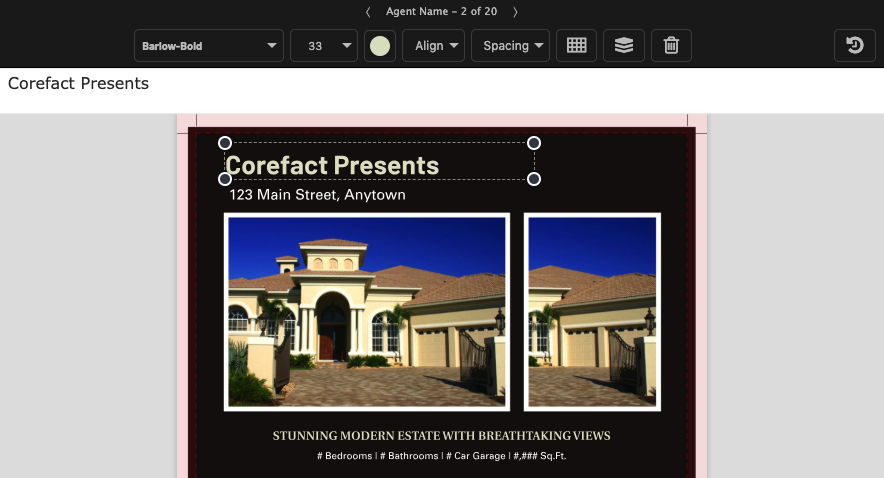
Online Editing Tool: Texts and Fonts 101
Learn all about editing and managing texts and fonts using the Corefact online editing tool.
Read More